The file upload action in Dokka is performed through SAP’s API component – the Service Layer. In general, a command is sent to the Service Layer to upload the file along with the file itself. The Service Layer then needs to take the file, store it in the defined attachments folder, and link it to the relevant document that was received (such as a journal entry, purchase invoice, etc). In order for the Service Layer to access that folder, you must grant access to that folder for it.
The process is divided into three steps:
Finding the defined attachments folder in SAP
Identifying the Windows user under which the Service Layer runs
Granting access to the folder for the Windows user
1) Finding the Defined Attachments Folder in SAP
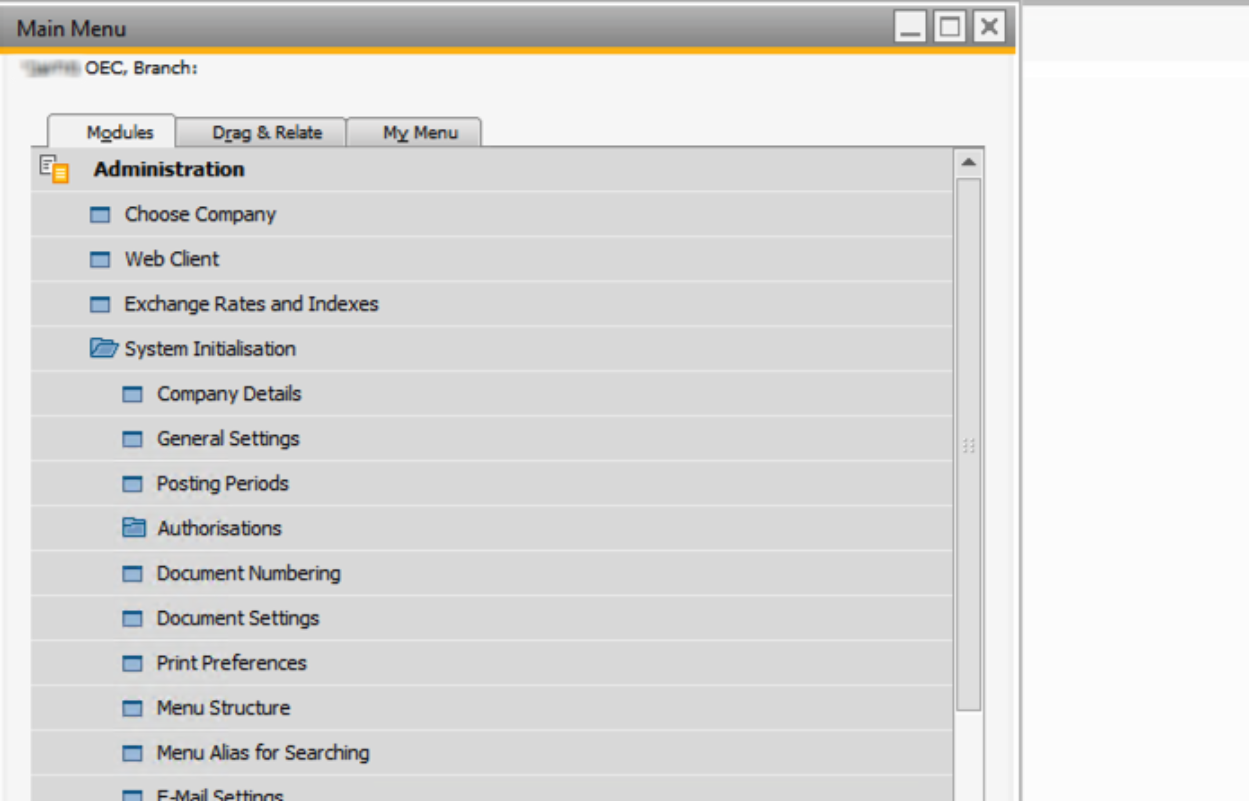
Log into SAP and navigate to:
Administration > System Initialization > General Settings
Then open the Paths tab. The folder listed under “Attachments Folder” is the folder that the Service Layer needs access to.
(This image shows the SAP General Settings > Paths tab with the Attachments Folder path highlighted).
2) Identifying the Windows User Running the Service Layer
The Service Layer is one of the services that run on the Windows Server hosting SAP. You can find its settings in the Services screen:
Click Start
Search for Services
Or press Windows+R, type
services.mscand press Enter
In the services list, find SAP Business One Service Layer Node. There may be multiple entries with different numbers, but the account configuration must be identical for each.
Double-click on one of the services (or right-click → Properties), then go to the Log On tab.
If the service is set to run using Local System Account, the user that must be granted access is SYSTEM.
If it is set to run with This Account, the user listed in that field must be granted access.
(This image shows the Service Layer service properties dialog with the Log On tab selected).
3) Granting Folder Access to the Windows User
Open File Explorer, navigate to the attachments folder, then open the folder’s Properties:
Right-click the folder
Select Properties
In the Properties window:
Go to the Sharing tab
Click Share...
In the Share dialog, add the user under which the Service Layer runs and give them Read & Write permissions. No additional permissions are required.
Screenshot Placeholder
(This image shows the folder Properties > Sharing tab and the Share dialog where the user is added). (DOKKA)
End of Article
Was this answer helpful? Yes / No
If you want actual screenshots embedded and an English-localized PDF version, I can generate that for you too—just let me know the preferred format and whether you want annotations.
Was this article helpful?
That’s Great!
Thank you for your feedback
Sorry! We couldn't be helpful
Thank you for your feedback
Feedback sent
We appreciate your effort and will try to fix the article