In the DOKKA system, only an Admin can create, edit, or delete users.
This guide will explain how to add a new user, change roles and permissions, or remove a user who no longer requires access to the system.
1. Creating a New User
To create a new user, you must navigate to the Organization screen (where all companies are listed):
Click on the Gray User Icon in the top righ corner of the screen.
Go to Settings -> Users.
Click on "Add User."

In the window that opens, fill in the following details:
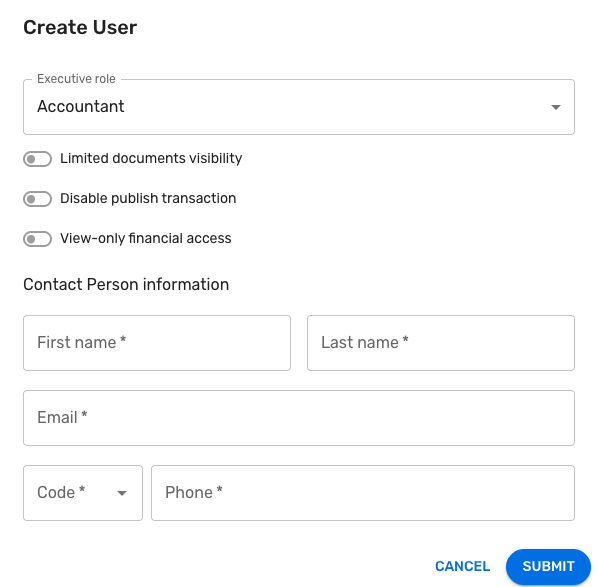
Group: The permission level granted to the user (e.g., Bookkeeper or Regular User).
First Name and Last Name.
Email Address: This will serve as the username for logging in.
Country Code and Phone Number.
Restrictions: If necessary, add limitations (e.g., blocking document reception or restricting view access to additional documents).
After filling in the details, click "Confirm."
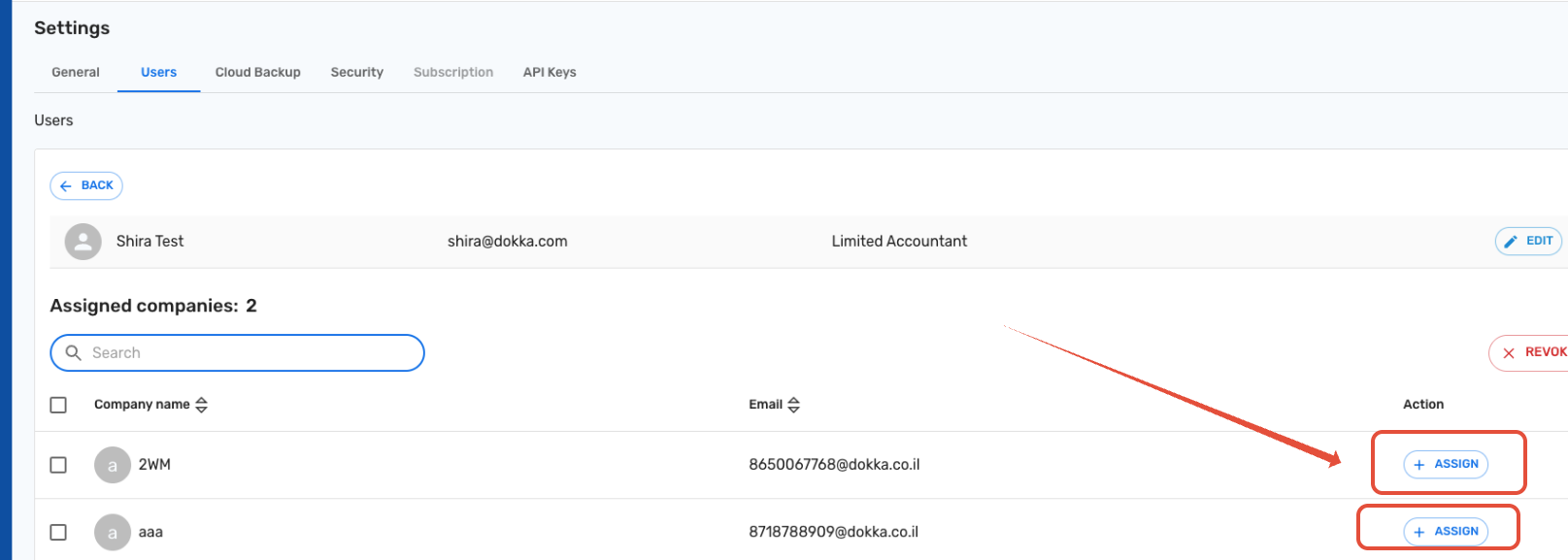
Please Note! After creating the user, you must assign them to the relevant company as follows:
Search for the new username in the search bar and click on the correct result.
Select the companies the user should be able to see.
Click "Assign."
Upon completion, the user will receive an activation email to set their password and perform an initial login.
If the initial code does not work, click "Forgot Password" on the login screen to receive a new code.
2. Assigning an Existing User to Additional Companies
Access the Organization Settings by clicking the Gray User Icon in the top right corner.
Switch to the Users tab.
Use the search bar to find and select the relevant user.

Once selected, a list of all companies in the organization will appear. Click the "Assign" button next to every company you want the user to access.
3. How to Edit Details or Permissions for an Existing User
Access the Organization Settings by clicking the Gray User Icon in the top right corner.
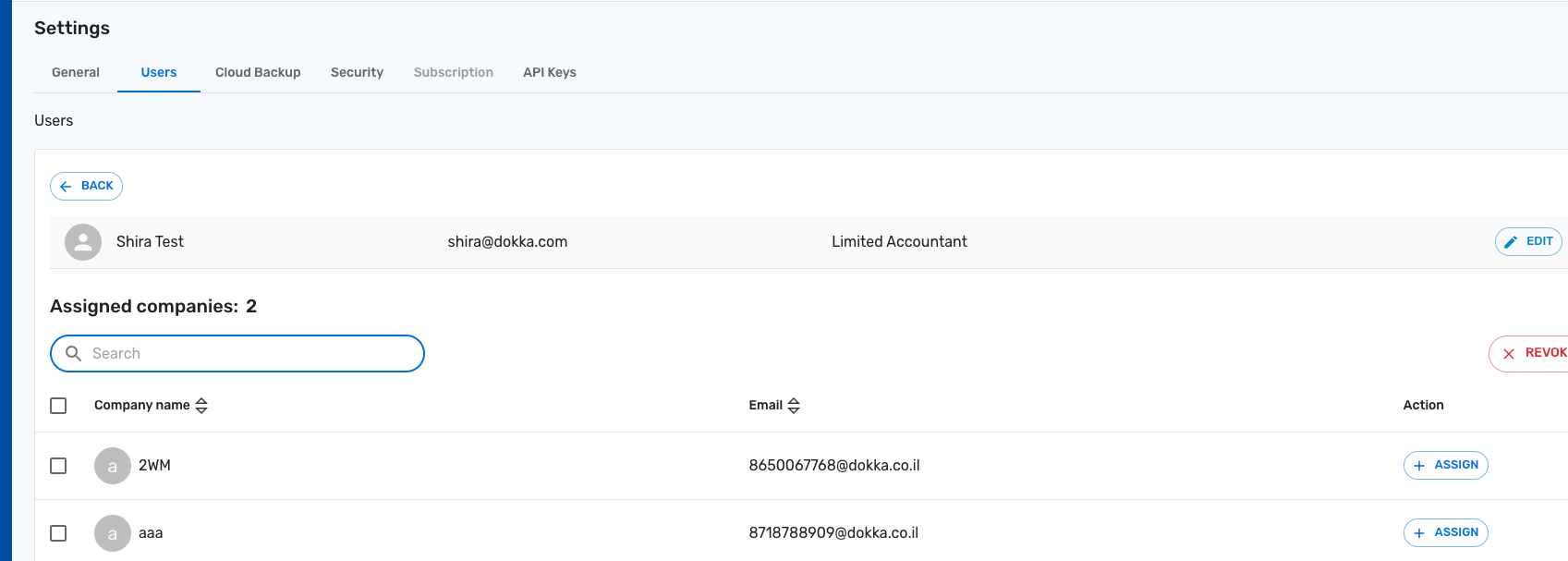
Switch to the Users tab and search for the relevant user.
Once the user is selected, an "Edit" button will appear on the right—click it.

Important Notes:
Admin Status: If you wish to promote a user to an Admin, please open a support ticket by clicking the Question Mark (?) button and request the permission change.
Email Changes: If you need to change a user's email address, you must create a new user and delete the existing one.
4. How to Delete a User
Access the Organization Settings by clicking the Gray User Icon in the top left corner.
Switch to the Users tab and search for the user you wish to delete.
After selecting the user, click the "Revoke Access from All Companies" button and then click "Delete."
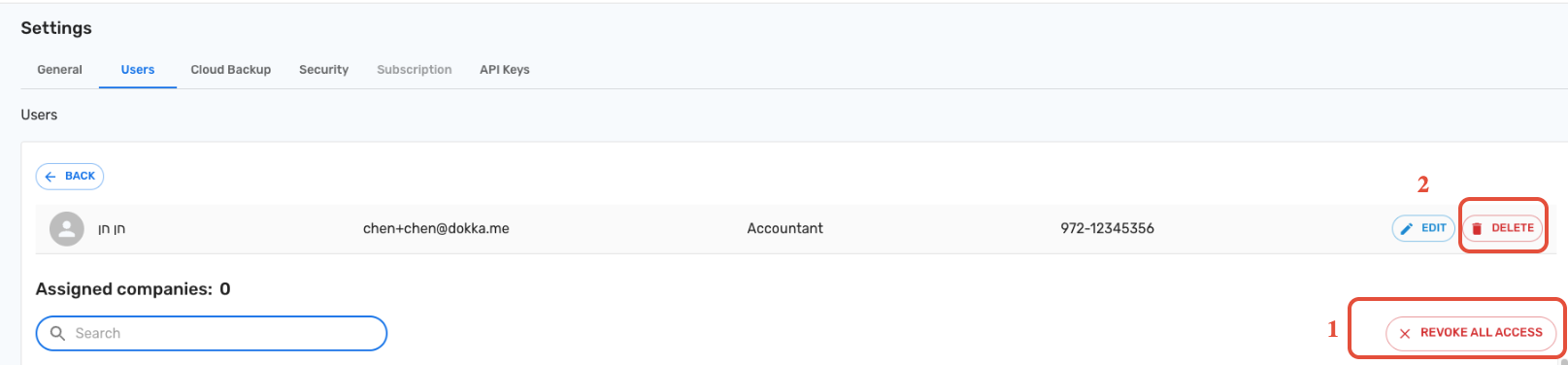 Please Note! If you wish to delete a user who is defined as an Admin, you must open a support ticket via the Question Mark (?) button to request the deletion.
For any questions or issues, feel free to contact the DOKKA Support Team by clicking the Question Mark (?) button.
Was this article helpful?
That’s Great!
Thank you for your feedback
Sorry! We couldn't be helpful
Thank you for your feedback
Feedback sent
We appreciate your effort and will try to fix the article