If you need to merge several uploaded files into a single multi-page document so they can be recorded under the same journal entry, follow the steps below:
Select Files: Hold down the Ctrl key (or Cmd on Mac) and click to select the documents you wish to merge.
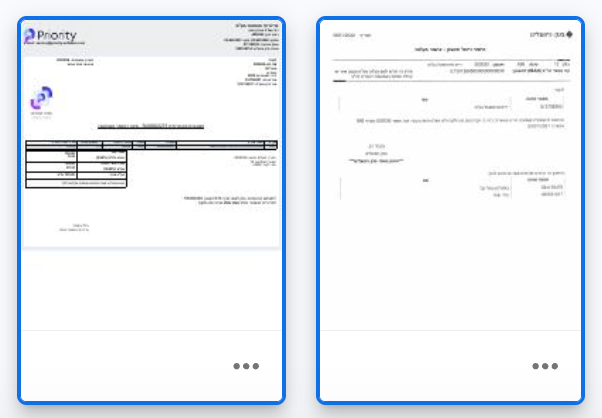
Action Bar: An action bar will appear at the bottom of the screen.
Merge: Click the "Merge Documents" button.

Confirm: Confirm the action in the pop-up window that appears.
⚠ Notes and Limitations
Processed Documents: You cannot edit or merge documents that have already been published to the accounting system or those with an active approval workflow.
To proceed: You must first remove the approval workflow or duplicate the document and work on the copy.
Digital Signatures: Editing a file (such as merging or reordering pages) creates a brand-new file. If the original file was digitally signed by the supplier, editing it will invalidate the signature.
Recommendation: Avoid editing signed documents, or keep the original file and create a duplicate for editing purposes.
Was this article helpful?
That’s Great!
Thank you for your feedback
Sorry! We couldn't be helpful
Thank you for your feedback
Feedback sent
We appreciate your effort and will try to fix the article