How to delete a company
Any user defined as an Administrator is authorized to delete a company directly from within Dokka.
To perform a deletion, follow these steps:
Click the Grey Icon in the top corner of the screen.
Select Settings.
Under the General tab, click the Trash Can icon located in the corner of the screen.
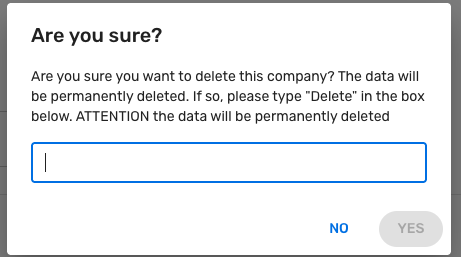
A confirmation window will appear in the center of the screen. To authorize the action, type the word "Delete" into the text box.
Post-Deletion & Recovery Period
Once the deletion is initiated:
All system administrators will receive an alert confirming that the company has been deleted.
Grace Period: You have 60 days to contact Dokka Support to restore the company if the deletion was made in error.
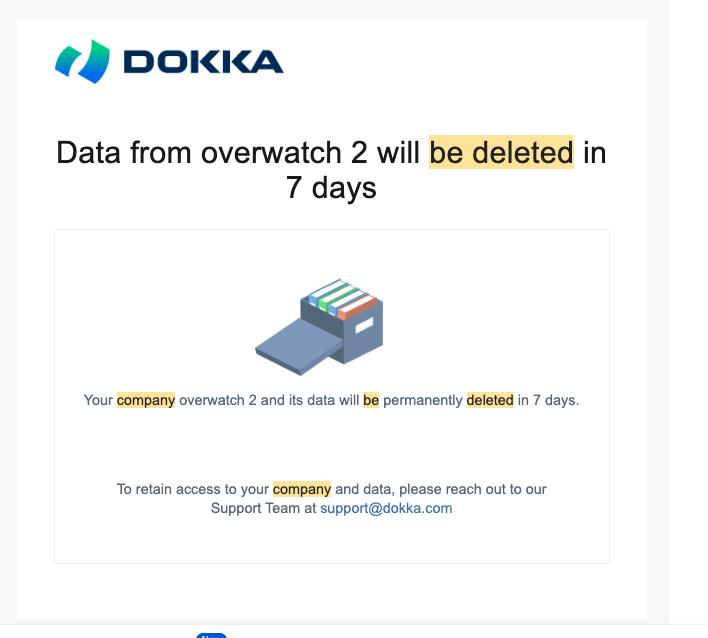
Reminders: Additional restoration reminders will be sent 30 days and 7 days before the final permanent deletion.
See the screenshot below for an example of the notification email:
Final Deletion
After 60 days, the company will be permanently deleted from Duka’s backups. Beyond this point, the data cannot be recovered.
If the deletion was intentional, please disregard the notifications sent to you.
For any questions, you can reach out to our Support Team by clicking the Question Mark (?) button.
Was this article helpful?
That’s Great!
Thank you for your feedback
Sorry! We couldn't be helpful
Thank you for your feedback
Feedback sent
We appreciate your effort and will try to fix the article