When receiving a file containing multiple pages, with specific pages requiring separate transactions, you must split the file within the system.
1. To split a multi-page file into several individual documents, follow these steps:
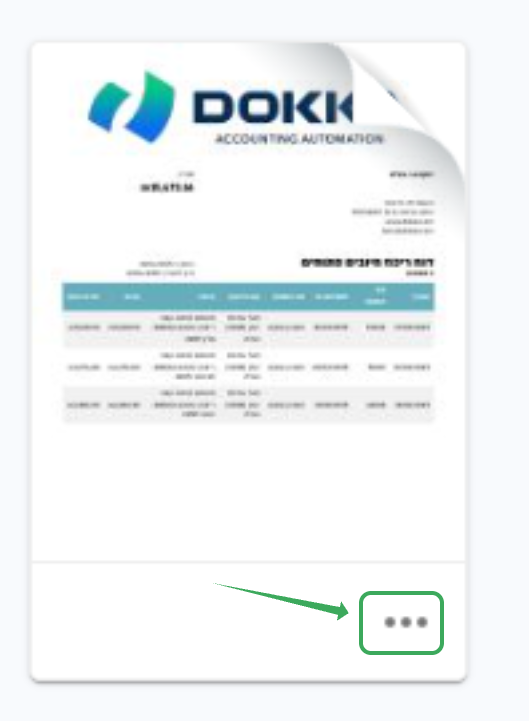
Click on the three dots (Menu icon) on the document.
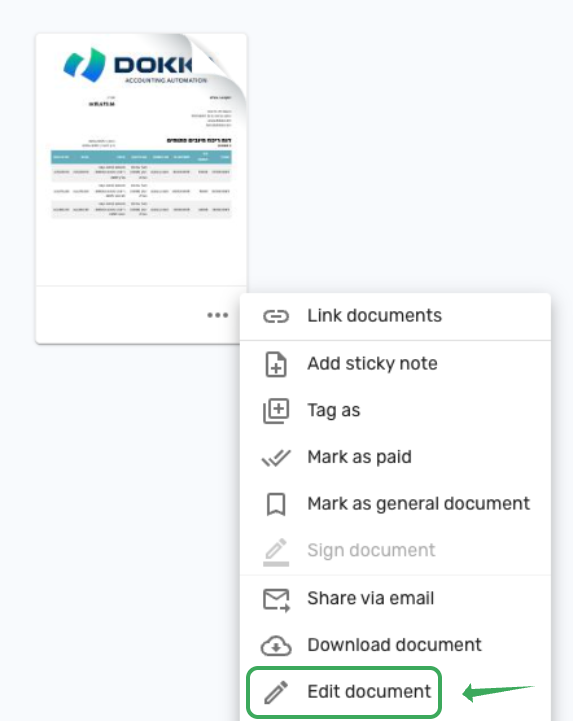
2. Select the "Edit Document" option.
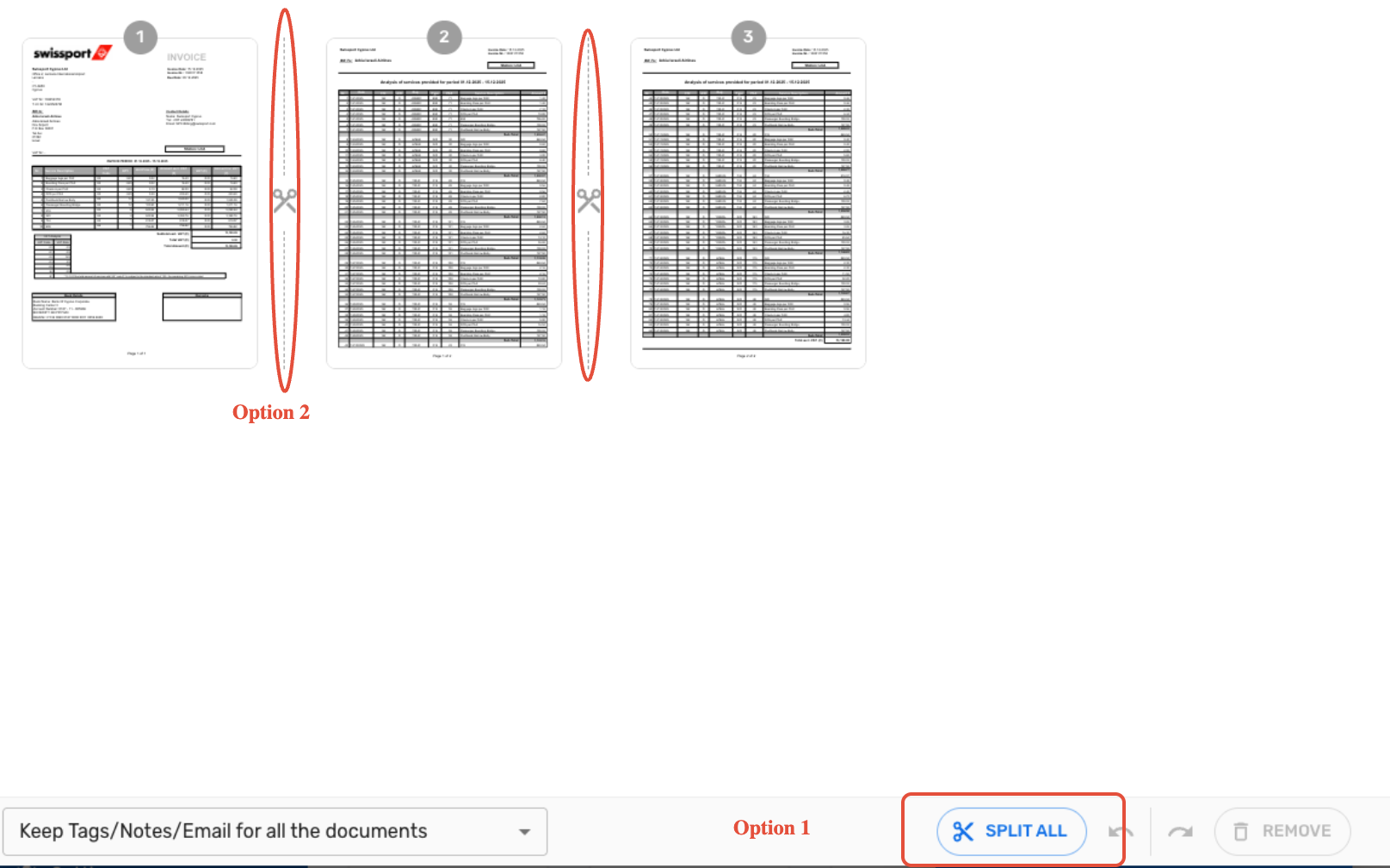
In the editing screen:
Use the "Split All" option to separate every page into an individual document.
Alternatively, click the Scissors icon between specific pages to define exactly where to split.
Click Save.
⚠️ Notes and Limitations
Processed Documents: You cannot split documents that have already been recorded in the accounting system or those with an active approval workflow. To proceed, you must first remove the approval workflow or duplicate the document and edit the copy.
Digital Signatures: Splitting a file or reordering its pages creates a completely new file. Therefore, if the original file was digitally signed by the supplier, it is recommended to avoid editing the document. Instead, keep the original as is and duplicate it if editing is required.
Was this article helpful?
That’s Great!
Thank you for your feedback
Sorry! We couldn't be helpful
Thank you for your feedback
Feedback sent
We appreciate your effort and will try to fix the article